
Category: Uncategorized

  • Planning Outdoor Digital Signage for Changing Conditions

    Planning Outdoor Digital Signage for Changing Conditions

    Putting a screen outside is a different job from putting one in a lobby. The display has to stay readable in sun and rain, survive heat and cold, and be reachable for service. Most problems with digital signage outdoors come from decisions made before installation, not from the screen itself.

    This guide walks through the questions to answer when planning outdoor digital signage, so your team can brief an installer clearly and avoid expensive changes later.
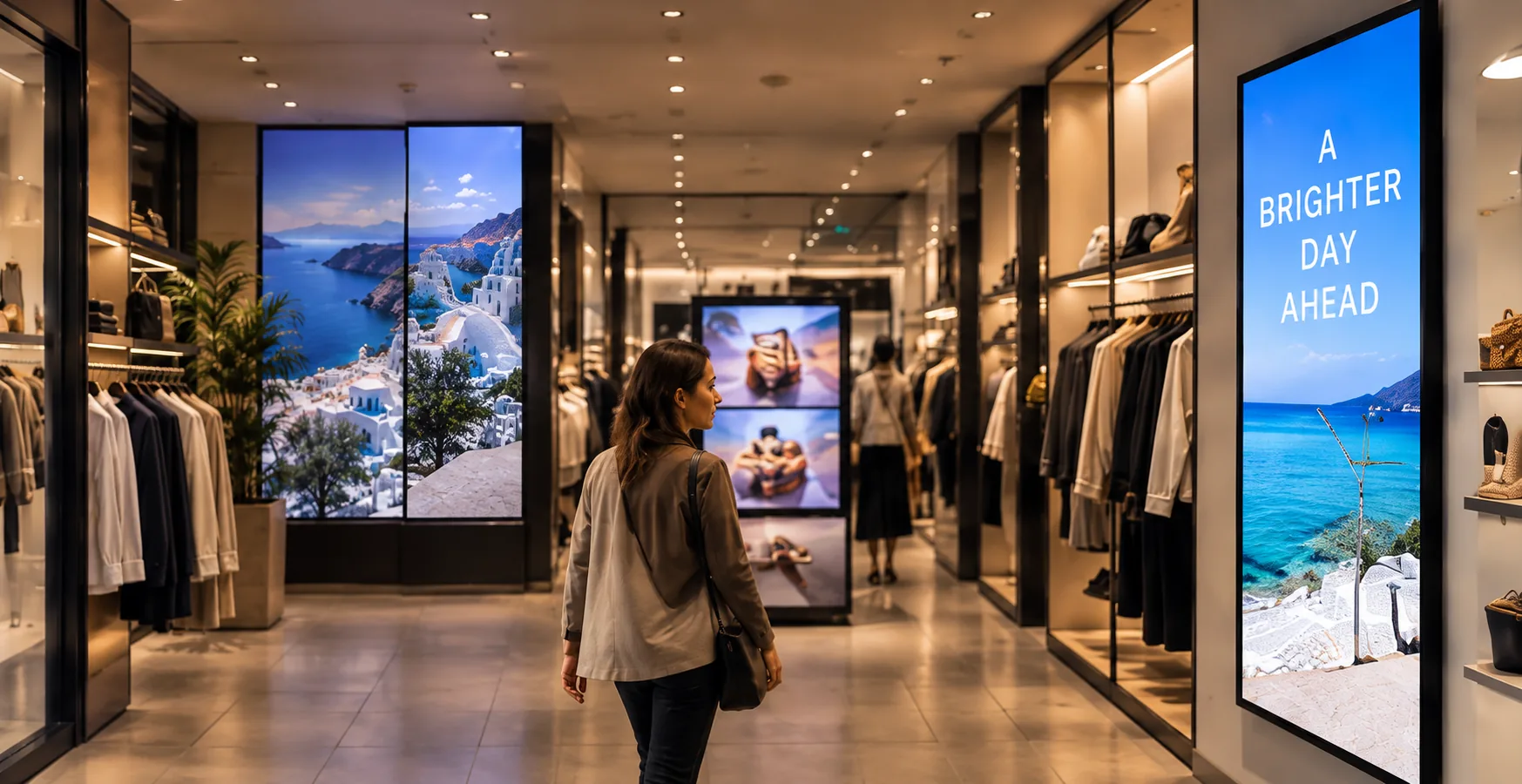
    Outdoor digital signage

    1. Start with the purpose and the audience

    Before choosing hardware, write down who will see the screen and from where.

    • Walking customers read from a few metres away and have time to look.
    • Drivers need very short messages and a large viewing distance.
    • Queues or waiting areas allow more detail and longer content.

    The answers set the screen size, the mounting height and how much text is realistic. A screen that suits pedestrians will usually fail for passing traffic.

    2. Study the site at different times of day

    Outdoor conditions change by the hour and by the season. Visit the proposed spot more than once if you can, and note:

    • Sun direction: Where is the sun in the morning, at midday and in the evening? Direct sun on the screen face is the biggest readability challenge. Sun behind the viewer is much easier to manage.
    • Glare and reflections: Glass facades, wet pavement and light-coloured walls can bounce light onto the panel.
    • Shade and cover: A canopy or recess reduces heat and glare, but check it doesn’t block the view.
    • Night lighting: Streetlights and shop lighting can make a very bright screen uncomfortable after dark, so brightness should be adjustable.
    • Foot and vehicle traffic: Look at the natural line of sight and where people stop.

    Take photos at each visit. They help the installer and show you what the screen will actually face.

    3. Brightness: read the datasheet, not the headline

    Indoor displays are designed for controlled lighting. Outdoors, the panel competes with daylight, so brightness (measured in nits, or cd/m²) matters far more. High-brightness outdoor models are rated much higher than indoor ones, but figures differ between manufacturers and are measured under different conditions.

    What to do:

    • Compare brightness values from the same type of source, the manufacturer datasheet.
    • Ask whether the screen adjusts brightness automatically with an ambient light sensor, which saves energy and avoids glare at night.
    • Ask about anti-glare or optically bonded glass, which can improve contrast in sunlight.

    4. Weather protection: understand the ratings

    Enclosure ratings tell you what a unit is built to withstand. Two systems are common:

    • IP codes (IEC 60529): The first digit covers solid particles such as dust, and the second covers water. For example, IP65 means dust-tight and protected against water jets.
    • NEMA ratings: Used mostly in North America. NEMA 4, for instance, covers outdoor use with protection against windblown dust and hose-directed water, and 4X adds corrosion resistance.

    Choose the rating based on your site: coastal air with salt, heavy rain, dusty roads or cleaning with hoses all call for different levels of protection. Ask the supplier to confirm the rating applies to the whole assembly, including the cable entries and media player, not just the panel.

    Sources: International Electrotechnical Commission, IEC 60529 “Degrees of protection provided by enclosures (IP Code)”; NEMA Standards Publication 250, “Enclosures for Electrical Equipment”.

    5. Temperature: heat, cold and humidity

    Every display has a rated operating temperature range and a separate storage range. Outdoors, a screen in direct sun can run hotter than the air around it, and cold mornings can slow the response of LCD panels.

    Check the following:

    • The rated operating range against your local extremes, including summer sun on a dark enclosure.
    • How the unit cools itself (passive, fans, or air conditioning) and how often filters need cleaning.
    • Whether a heater is built in for cold starts.
    • How the unit handles condensation and humidity.

    Your local weather service or climate records give the range your screen must handle.

    6. Power, network and content delivery

    Plan the infrastructure as carefully as the screen:

    • Power: A dedicated, protected circuit and surge protection are sensible outdoors. Have a qualified electrician confirm requirements and local code.
    • Connectivity: Wired network is the most stable option. Cellular or wireless links work where cabling isn’t practical, but check signal at the exact mounting point.
    • Content management: Decide who updates content and how. Remote scheduling lets you change messages without climbing a ladder, and can switch to simpler, higher-contrast layouts for daylight.
    • Failure behaviour: Decide what the screen shows if the connection drops, for example a stored default loop.
    Outdoor digital signage

    7. Mounting, access and safety

    The structure matters as much as the display:

    • Wall, pole or freestanding: Confirm the wall or foundation can carry the weight, including wind load. A structural check by a qualified professional is advisable for larger units.
    • Height and angle: Mount so the screen is comfortable to read and tilted away from direct sun where possible.
    • Vandalism and impact: Consider tempered or protective glass, tamper-resistant fixings and placement out of easy reach.
    • Service access: Leave room to open the enclosure, replace parts and clean the screen.
    • Permits: Outdoor signs may need planning approval or a permit, and rules differ by municipality. Check with your local authority before ordering.

    8. Design content for outdoor viewing

    Even a good screen can fail with the wrong content. Use:

    • High contrast between text and background, and large, simple fonts.
    • Short messages that read in a few seconds.
    • Limited animation, so the message stays clear when someone glances over.

    Test the content on the real screen, in daylight, from the real viewing distance, before sign-off.

    9. Plan maintenance from day one

    Outdoor equipment needs regular attention. Agree in advance on:

    • Cleaning routines for the glass and any air filters.
    • Periodic inspection of seals, cable entries and mounts.
    • Monitoring, so you are alerted if a screen goes offline.
    • Who is responsible for repairs and how quickly they respond.

    A short planning checklist

    1. Define the audience, viewing distance and goal.
    2. Observe the site at different times and seasons.
    3. Compare brightness and anti-glare options from datasheets.
    4. Match IP or NEMA rating to the environment.
    5. Check temperature range and cooling.
    6. Confirm power, network and content workflow.
    7. Verify mounting structure, access and permits.
    8. Test content in real daylight.
    9. Set up a maintenance plan.

    Get help with placement and installation

    A good installation starts with a site visit, so the screen, mount and cabling suit the actual location. If you’re considering an exterior screen and want to talk through placement, power and mounting, see our digital signage installation service and get in touch with the team.


    Image alt texts

    1. Outdoor digital signage screen mounted on a building exterior in daylight
    2. Installer checking the mounting bracket of an exterior digital signage display
    3. High-brightness outdoor digital signage readable in direct sunlight
    4. Weatherproof enclosure of a digital signage screen in rain
    5. Checklist for planning digital signage outdoors with site photos and measurements
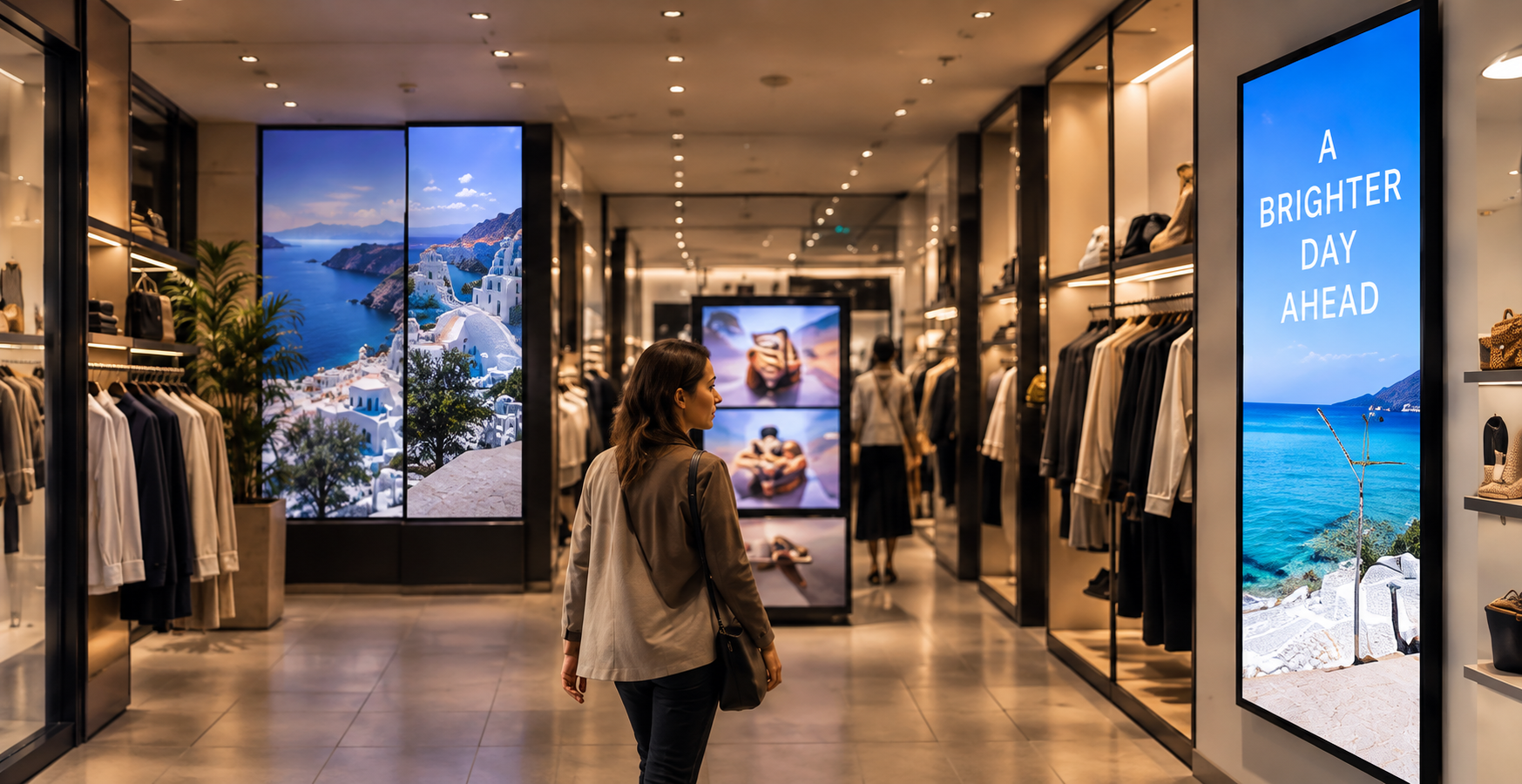
    Related reading on outdoor digital signage

  • Digital Signage Examples That Make Messages Easy to Notice

    Digital Signage Examples That Make Messages Easy to Notice

    People walk past dozens of screens, posters and notices every day. Most of them barely register. A good screen gets noticed because it is clear, timely and placed where someone is already looking.

    This article walks through practical examples of digital signage, explains why each one works, and ends with a short checklist you can use for your own screens. If you are looking for a quick digital signage example to copy, start with the sections below that match your business.

    Digital signage example

    What counts as digital signage?

    Digital signage is any screen that shows managed content to an audience: menus, schedules, announcements, wayfinding, promotions or live information. It can be a single screen at a counter or a network of displays across many locations. For a general definition, see the Digital signage overview on Wikipedia.

    The examples below share one idea. Each screen answers a question the viewer already has, such as “What can I order?”, “Where do I go?”, “What’s happening today?” or “What should I do next?”

    1. Restaurant and café menu boards

    A digital menu board is probably the most familiar digital signage sample. Instead of a printed menu that has to be reprinted whenever something changes, the screen shows the current items and prices.

    Why it’s easy to notice:
    – Large product names with a short description
    – One or two featured items instead of the whole menu at once
    – Content that changes by time of day, for example breakfast, lunch and evening

    Tip: Keep each slide to one purpose. A “today’s special” slide gets more attention when it sits on its own than when it is squeezed in beside forty other items.

    2. Retail promotions and in-store displays

    Shops use screens near entrances, shelves and checkouts to highlight offers, new arrivals and seasonal campaigns.

    Why it works:
    – It sits at the point of decision, where the customer is already choosing
    – Motion draws the eye without needing more text
    – Promotions can be switched on and off without a print run

    Tip: A short headline, one image and one clear offer beat a crowded slide. If shoppers need more than a few seconds to understand it, simplify it.

    3. Reception and lobby welcome screens

    Offices, clinics, hotels and showrooms often use a screen at reception to greet visitors, show a company message, or list who is expected.

    Why it works:
    – Visitors wait in this spot, so they have time to read
    – A welcome message with a name or logo sets a professional tone
    – Practical details such as Wi-Fi instructions or opening hours reduce repeated questions

    4. Wayfinding and directories

    Large buildings such as malls, hospitals, campuses and business centers use digital directories to point people to the right floor, room or department.

    Why it works:
    – Arrows and floor labels remove guesswork
    – Updates are simple when a tenant or room changes
    – A consistent layout helps people learn it once and use it anywhere in the building

    Tip: Use high contrast and large text. The W3C’s accessibility guidelines recommend a minimum contrast ratio of 4.5:1 for normal text (see WCAG 2.2, Contrast (Minimum)). It is a sensible baseline for any screen people read from a distance.

    5. Internal communications for staff

    Break rooms, warehouses, factory floors and back-of-house areas are good places for screens that show:
    – Daily schedules and shift notes
    – Safety reminders
    – Team announcements and recognition
    – Key figures or targets

    Why it works: Staff who do not sit at a computer all day still see the message. A screen in a shared space can replace a noticeboard that nobody checks.

    6. Events, conferences and venues

    Event screens show session schedules, room changes, sponsor messages and social walls.

    Why it works:
    – Timing matters, and the screen can update as the day changes
    – Rotating sponsor slides give each sponsor a fair share of airtime
    – Attendees check schedules often, so the screen earns repeat attention

    7. Queue and service-status screens

    Banks, pharmacies, service centers and public offices use screens to show ticket numbers, counters and expected waiting information.

    Why it works: The screen gives people something useful while they wait. This kind of example of digital signage also shows that a screen can be functional first and promotional second.

    Digital signage example

    8. Education and campus screens

    Schools and universities use screens for timetables, room allocations, notices, exam information and campus news.

    Why it works: Information changes constantly, and students look for it on their way somewhere. A screen at a corridor junction or entrance reaches them at the right moment.

    9. Transport and public information

    Stations, stops and terminals display departures, delays and service notices. These are among the clearest digital signage examples because the content is live and viewers rely on it.

    Why it works: The information is current, readable at a glance and relevant to the decision the viewer is about to make.

    What these digital signage samples have in common

    Looking across these examples, the screens that get noticed tend to follow the same few habits:

    1. One message per slide. Each slide has a single point.
    2. Short text. Headlines are readable from a distance, and details go elsewhere.
    3. Strong contrast and clear type. Text must stand out against the background.
    4. The right place. The screen is where people pause, queue or decide.
    5. Fresh content. Old information teaches people to ignore the screen.
    6. A clear next step. The viewer knows what to do: order, ask, go, scan or wait.

    The screen is only half the job. The content decides whether anyone pays attention, so it is worth planning what you will show and how often it changes. Our guide to digital signage content covers that in more detail.

    A quick checklist before you publish a screen

    Use this list to review any digital signage example you are about to put on a display:

    • [ ] Can someone understand the message in about three seconds?
    • [ ] Is the text large enough for the viewing distance?
    • [ ] Is there enough contrast between text and background?
    • [ ] Is there only one main call to action?
    • [ ] Is the content current, with no expired dates or old prices?
    • [ ] Does the content suit the location and the people who pass by?
    • [ ] Have you looked at the screen from where the audience actually stands?

    Common mistakes to avoid

    • Too much on one slide. A crowded layout is easy to ignore.
    • Tiny text. What reads well on your laptop may be unreadable across a room.
    • Never updating. A screen showing last month’s offer hurts credibility.
    • Copying print layouts. A poster designed for close reading does not always work on a screen viewed at a glance.
    • Ignoring the environment. Glare, lighting and viewing angle all affect how readable a screen is.

    Choosing which example to start with

    You do not need to build everything at once. Pick the one situation where a better message would help most:

    • If customers ask the same questions repeatedly, start with an information or menu screen.
    • If you want to promote specific products, start with a point-of-sale promotion.
    • If staff miss announcements, start with an internal communications screen.
    • If visitors get lost, start with wayfinding.

    Test it, watch how people respond, and adjust. Small changes to wording, timing and placement often make the biggest difference.

    Final thoughts

    The best examples of digital signage are not the flashiest. They are the screens that show the right message, in the right place, at the right moment, in a form people can read in seconds. Use the examples above as a starting point, match them to a real question your audience has, and keep the content fresh.


    Image suggestions with alt text

    1. Restaurant menu board: Digital menu board in a café showing a featured special and three drink prices
    2. Retail display: Retail store screen near the entrance showing a single seasonal offer
    3. Reception screen: Welcome screen at an office reception displaying a greeting and Wi-Fi instructions
    4. Wayfinding: Digital directory in a building lobby with floor labels and arrows
    5. Staff screen: Internal communications screen in a break room showing the daily schedule
    6. Checklist graphic: Checklist for reviewing digital signage content before publishing

    Related reading on digital signage example